Skip to content
SVN Desktop
EN
Download

Subversion client for macOS and Windows

The SVN client for Mac and Windows that works like GitHub Desktop

See what changed, check the files and commit. History, branches, merges and conflicts on clear screens, with Subversion built in: nothing to install, no commands to memorize.

Free for 7 days. No sign-up, no credit card. Mac with Intel processor v1.0.0

macOS 12 Monterey or later (Apple Silicon and Intel) · Windows 10 or later (64-bit)

SVN Desktop changes view: a list of modified files with checkboxes, the diff for src/payments.ts and the commit message field

Coming from Git? You already know how to use it

SVN Desktop has the same screens and navigation as GitHub Desktop. What changes is what happens underneath, and the app takes care of that for you.

How each GitHub Desktop action maps to an SVN Desktop action and to the Subversion command
In GitHub DesktopIn SVN DesktopWhat the app runs
Clone repository Check out svn checkout
Changes, with a checkbox per file Changes, with a checkbox per file svn status, automatic add and delete
Commit + Push Commit (goes straight to the server) svn commit
Fetch / Pull origin Check server / Pull from server svn log -r BASE:HEAD / svn update
History History, including commits not pulled yet svn log -v, svn diff -c
New branch New branch (created on the server) svn copy + svn switch
Merge into current branch Merge into current branch svn merge
Revert commit Revert commit svn merge -c -N
Stash Stashed changes patch + svn patch
.gitignore Ignored files svn:ignore / svn:global-ignores

Changes and commits, no surprises

Every changed file shows up in one list, with the diff next to it. Check what goes into the commit, write a summary and send it. New and deleted files are picked up automatically, no svn add or svn delete needed.

  • Unified or split diff, with an option to hide whitespace and line-ending changes
  • Discard changes and keep a copy in the Trash
  • Stash changes for later, including binary files
  • Resolve conflicts in one click: your version, the server version, or mark as resolved
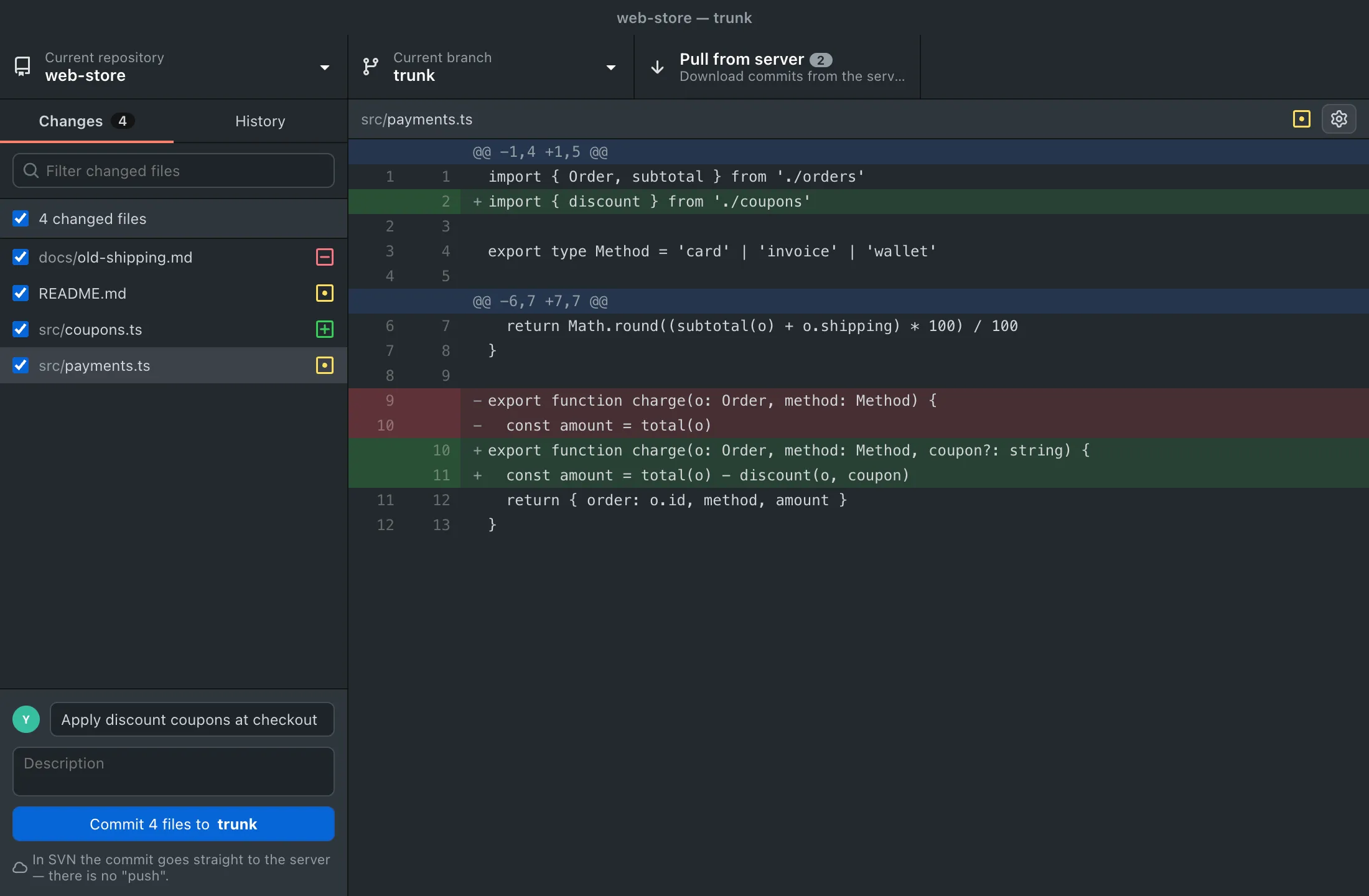
A list of four changed files and the diff for src/payments.ts with added and removed lines

History that shows what has not arrived yet

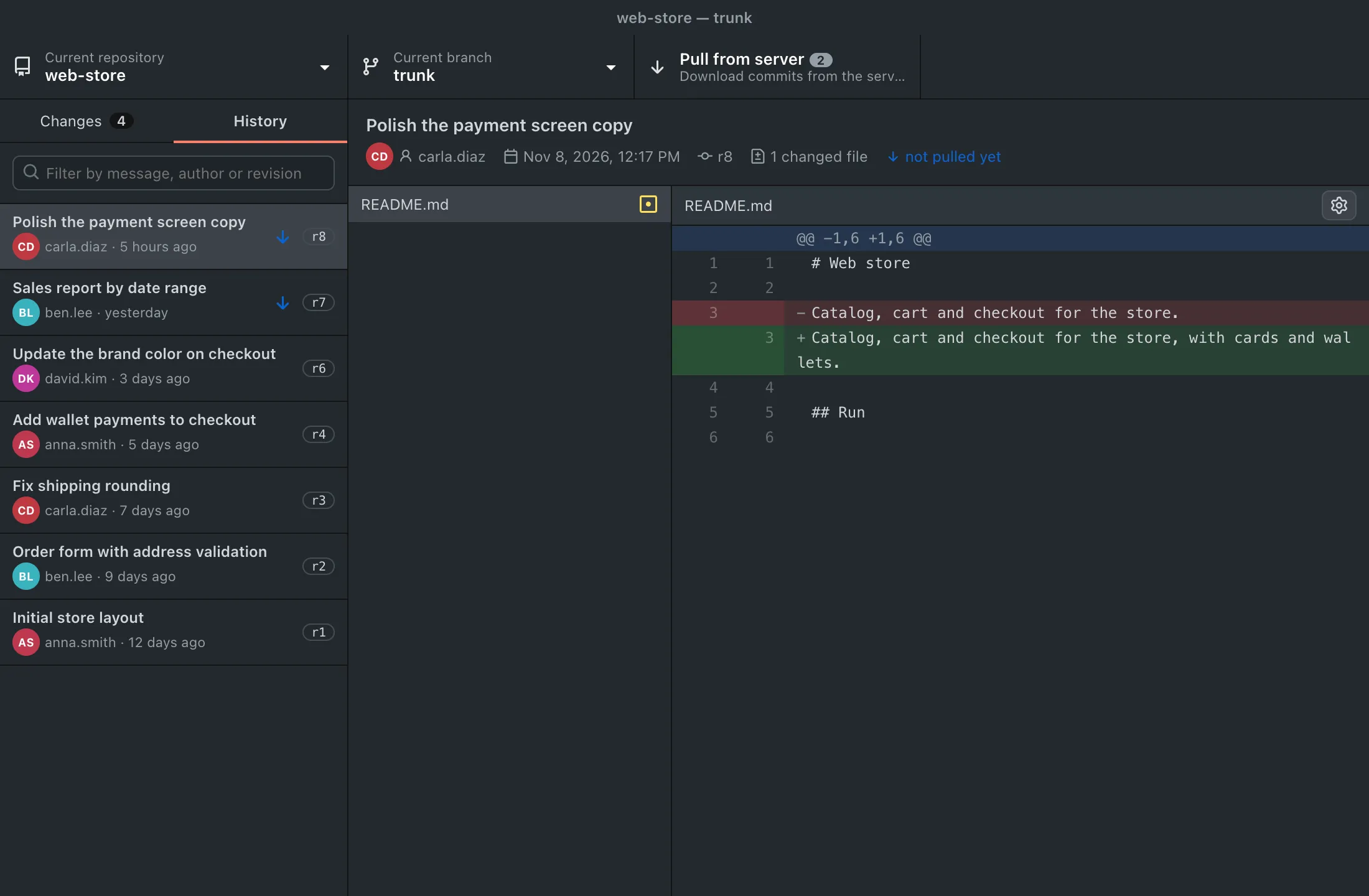
Every commit with its author, date, revision and changed files. Commits that are already on the server but not pulled yet are flagged, and one pull brings them all.

  • Filter by message, author or revision number
  • Revert a commit, create a tag or go back to an older revision
  • Automatic background check for new commits on the server
Repository history with eight commits from four authors; the two most recent ones flagged as not pulled yet

Branches, merges and tags on the trunk/branches/tags layout

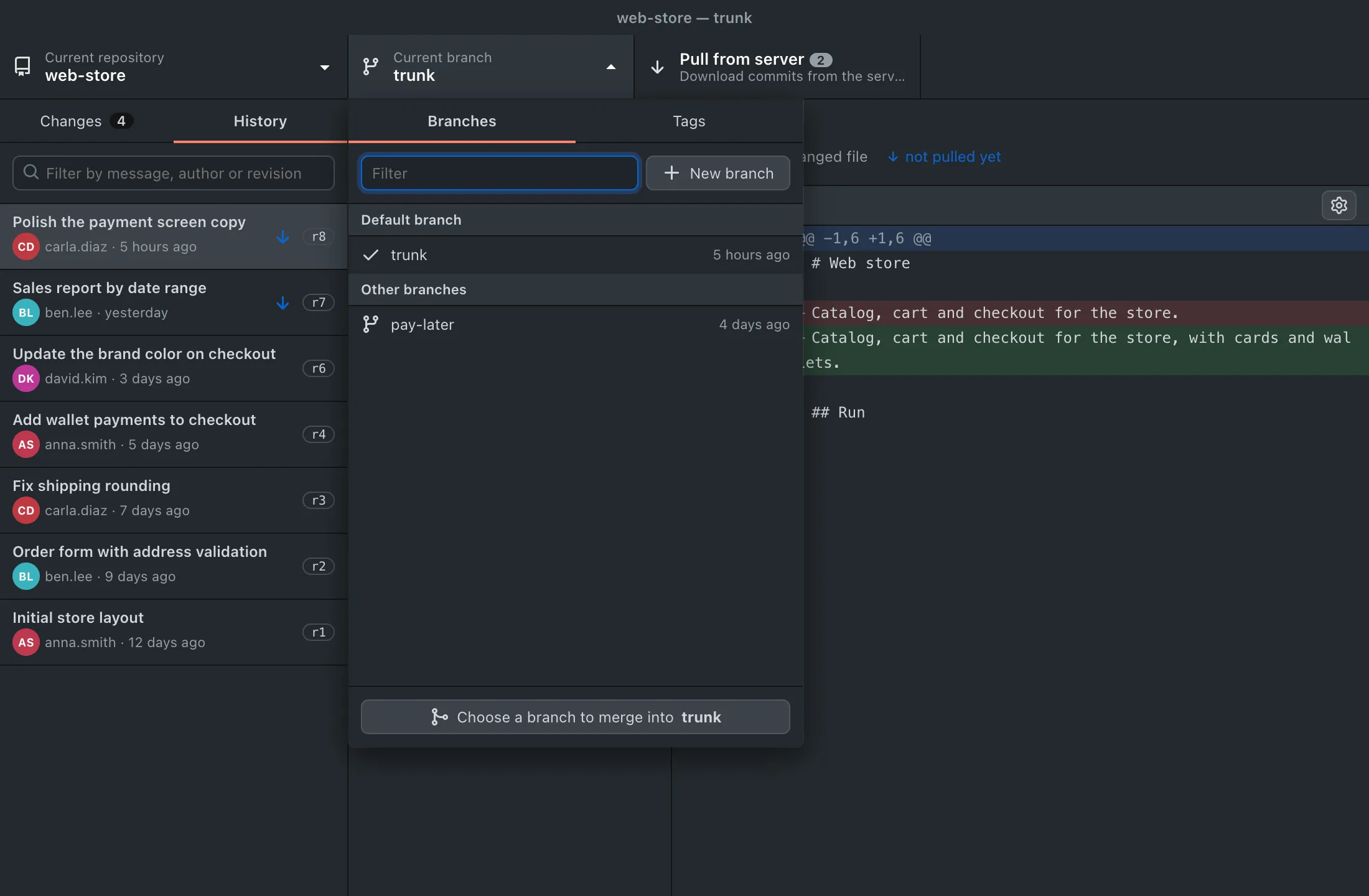
Create a branch from trunk or from the current branch, switch and merge in a few clicks. When you switch with pending changes, you choose whether they come along or get stashed.

  • Rename and delete branches
  • Merge another branch into the current one
  • Tags from any revision
The branch list open, showing trunk as the main branch, the pay-later branch and the button to create a new branch

Everything a Subversion client should have

No plugins, no setup and no command line.

  • Subversion built in

    The app ships with svn. It works on a brand-new computer, without Homebrew or an extra installer.

  • Any SVN server

    Access over http, https, svn:// and file://. Works with corporate servers, cloud hosting or your own network.

  • Company certificates

    Uses the system certificate authorities, including the ones installed by IT, and lets you trust self-signed certificates.

  • Checkout and new repositories

    Check out from a URL or create a repository with trunk, branches and tags already in place.

  • Your editor and terminal

    Open the project in your editor, terminal or Finder/Explorer right from the app.

  • Ignored files

    Edit svn:ignore and svn:global-ignores rules as if they were a .gitignore.

  • GitHub Desktop shortcuts

    The same keyboard shortcuts and the same menus. If you already use it, there is nothing to relearn.

  • English and Portuguese

    The interface comes in both languages, with light, dark or automatic theme.

Pricing

Try every feature for 7 days. Then choose how long you want your license to last.

  • Every feature
  • License for 1 computer
  • Move to another computer anytime
  • Mac or Windows

Prices in US dollars (USD). Secure payment by Stripe. Your key arrives by email right after payment.

Frequently asked questions

Do I need to install Subversion (svn)?

No. SVN Desktop ships with Subversion built in, on both Mac and Windows. If you prefer another svn installed on your computer, you can pick its path in Preferences.

Does it work with my SVN server?

It works with any Subversion server reached over http, https, svn:// or file://, such as Apache with mod_dav_svn, VisualSVN Server and svnserve, including company or self-signed certificates.

Which Mac and Windows versions are supported?

macOS 12 Monterey or later, on Macs with Apple Silicon (M1 and newer) or Intel, and Windows 10 or later, 64-bit.

Is it a TortoiseSVN alternative for Mac?

Yes. TortoiseSVN is Windows-only and lives inside File Explorer. SVN Desktop is a standalone app that looks and works the same on Mac and Windows, with the GitHub Desktop screens.

I have only used Git. Will I find my way around?

Yes. The screens are the ones from GitHub Desktop, and the app explains the differences when they matter: in SVN a commit goes straight to the server (there is no push) and a branch is a folder under /branches.

Can I use my license on more than one computer?

A license covers one computer at a time. To move to another computer, remove the license on the old one (License menu) or release the activation on our website, then activate the new one with the same key.

What happens when the trial or the license ends?

The app asks for a license to continue. Your repositories stay untouched: they are regular Subversion working copies that keep working with any other SVN client or the command line.

Does it need an internet connection?

Only to reach your SVN server and to activate the license. Once activated, the app checks the license with our server from time to time and works for up to 30 days in a row offline.

Does my code go through your servers?

No. The app talks directly to your SVN server. Our license server only receives the key, an anonymous computer identifier, the computer name, the operating system and the app version.

Is there a Linux version?

Not yet. SVN Desktop is currently available for macOS and Windows.

macOS or Windows warns that the developer cannot be verified. What do I do?

This is expected for this first release, which is not yet signed with Apple and Microsoft developer certificates. On macOS: open SVN Desktop once, dismiss the warning, go to System Settings → Privacy & Security and click "Open Anyway". On Windows: in the SmartScreen warning, click "More info" and then "Run anyway". You only need to do this the first time.

Try it on your next commit

7 days with every feature, no sign-up and no credit card.

Mac with Intel processor